
Creating Pages
Build a page WHMCS does not have - a landing page, a policy page, a comparison table - and register it so Page Manager treats it like every page the theme ships. Four small files, no database work, and it survives updates.
Introduction
A new page is two things stacked on top of each other. WHMCS provides the bottom half: a .php file in your web root that boots the client area and names a template. Hadrian provides the top half: the theme wraps that template in its header and footer, and registers the page so it appears in Hadrian -> Pages with the same SEO panel, template cards and layout overrides as everything else.
You never touch the database and never edit a shipped file, so everything in this article survives both WHMCS updates and theme updates.
Hadrian ships a working example. If your install came with custom-page.php in the WHMCS root, open https://your-domain.com/custom-page.php:
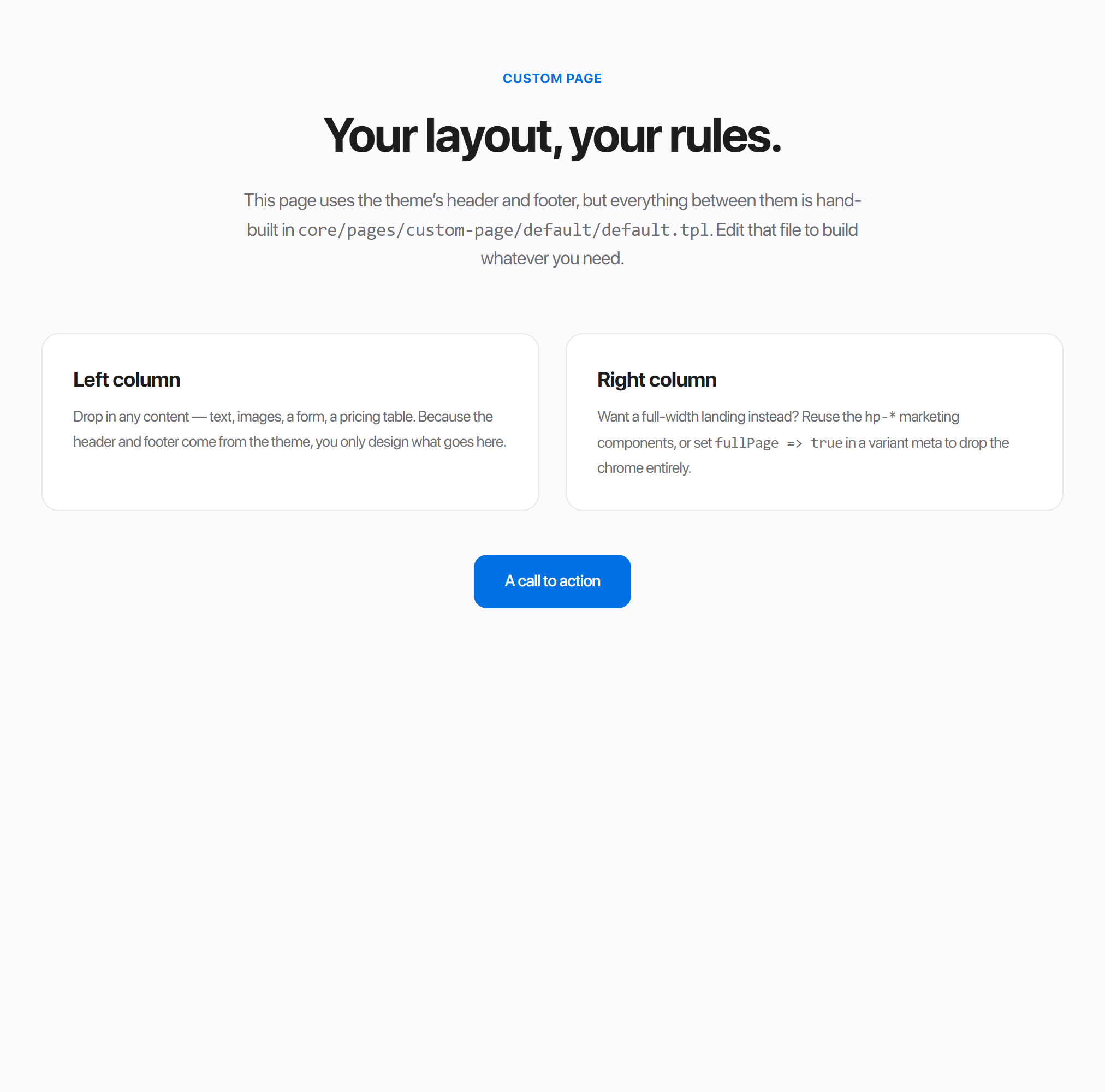
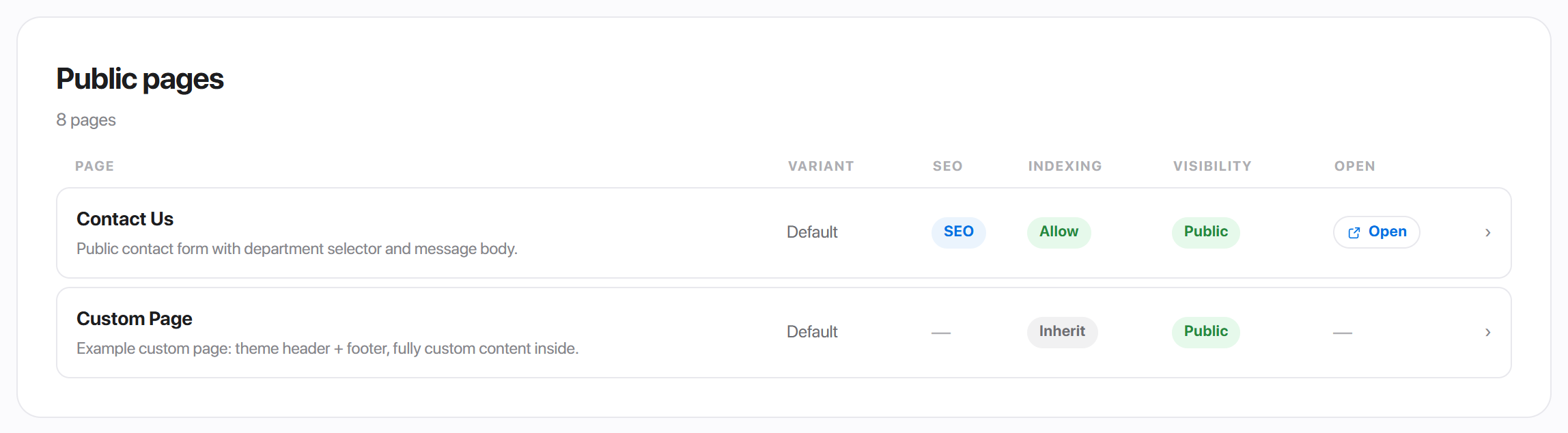
That page is built from exactly the four files this article walks through, and it is already registered - open Hadrian -> Pages and it is in the Public group:
This article is written for whoever edits the files - a developer comfortable with basic PHP and Smarty. Everything after the files exist happens in the admin, like any other page.
The four files
For a page named about, reachable at https://your-domain.com/about.php:
| File | Role |
|---|---|
<whmcs-root>/about.php | The WHMCS entry point. Boots the client area, sets the fallback page title, names the template. |
templates/hadrian/about.tpl | The dispatcher. Two lines of logic that hand the body to core/pages, so the admin's template choice works. |
templates/hadrian/core/pages/about/page.php | The registration. Names the page in Page Manager and files it under a group. |
templates/hadrian/core/pages/about/default/default.tpl | The body. Your markup, between the theme's header and footer. |
One name threads through all four: the entry file's setTemplate('about') must match the dispatcher's filename, which must match the core/pages/about/ folder. Lowercase letters, digits and hyphens.
- 1Copy
custom-page.phpin your WHMCS root toabout.php, changesetPageTitle(...), and changesetTemplate('custom-page')tosetTemplate('about'). - 2Copy
templates/hadrian/custom-page.tpltotemplates/hadrian/about.tpland replace everycustom-pageinside it withabout. - 3Create
templates/hadrian/core/pages/about/page.php- the reference below. - 4Create
templates/hadrian/core/pages/about/default/default.tpland put your markup in it. The shippedcustom-page/default/default.tplis a token-correct starting point. - 5Open Hadrian -> Pages. The page is in the list - no cache to clear, no version to bump. Give it SEO copy, a Public URL, or a layout override like any other page.
The entry file
<?php

use WHMCS\ClientArea;

define('CLIENTAREA', true);

require __DIR__ . '/init.php';

$ca = new ClientArea();

$ca->setPageTitle('About us');
$ca->initPage();

// Uncomment to require a logged-in client (otherwise the page is public):
// $ca->requireLogin();

$ca->setTemplate('about');

$ca->output();
This is plain WHMCS - their documentation covers the ClientArea API. Two lines matter to Hadrian:
setPageTitle is the fallback <title> and on-page heading. It is one string in one language; once the page is registered, the per-language SEO title on the Pages tab is the better home for it and wins when set.
requireLogin gates the page inside WHMCS itself, before any template renders. The admin's Visibility setting on the Pages tab does the same job from a dropdown - Authenticated only redirects signed-out visitors to login, Disabled (404) takes the page offline - details in Page Manager.
requireLogin() is enforced by WHMCS with the addon out of the picture entirely. For a page that must never be seen signed-out, set both - together they cost nothing, and the entry file keeps guarding even if the addon is ever deactivated.The dispatcher
WHMCS renders templates/hadrian/about.tpl between the theme's header and footer. The file stays two lines of logic forever - the body lives in core/pages, where Page Manager can see it:
{if isset($hadrian.pages['about'].fullPath) && $hadrian.pages['about'].fullPath && file_exists("templates/`$hadrian.pages['about'].fullPath`")}
    {include file="`$hadrian.pages['about'].fullPath`"}
{else}
    {include file="`$template`/core/pages/about/default/default.tpl"}
{/if}
The first branch renders whatever template is activated in the admin - that is what makes the Page template cards work on your page. The fallback keeps the page rendering even if the Hadrian addon is deactivated.
$hadrian.pages['about']. The dot form ($hadrian.pages.about.fullPath) silently fails to compile once a page name contains a hyphen, and most do. And leave the file_exists path exactly as shipped - templates/... is resolved from the WHMCS root, not from the template folder, and "fixing" it breaks the check.page.php
<?php
return [
    'display_name' => 'About us',
    'group'        => 'Public',
    'description'  => 'Who we are and why we host.',
    'seoDefaults'  => [
        'indexing'    => 'allow',
        'title'       => 'About us',
        'description' => 'The team and the platform behind the hosting.',
    ],
];| Key | Default | Purpose |
|---|---|---|
display_name | the folder name | The name shown in Page Manager. |
group | Other | Which tab it files under: Public, Authentication, Client Area, Account, Billing, Shop or Support. |
description | empty | The line under the name in the list. |
defaultVariant | default | Which template renders before anyone picks one. |
listDisplay | true | Set false to keep it out of the list. It still renders and is still reachable by URL. |
supportedOptions | [] | Settings to show under Template settings for every template of this page. The shipped Dashboard templates demonstrate every field type. |
seoDefaults | none | Starting indexing, title and description, used until someone edits the page's SEO. |
Strictly, page.php is optional - a folder with a valid template inside already registers. Skip it and the page lists under its folder name in the Other group, which is a worse first impression than three lines of PHP.
The body
Your default.tpl is ordinary Smarty rendered inside the theme, so everything the theme's own pages use is on the table:
- Design tokens. Colour with
var(--color-*)and size with the--w-*width tokens, and the page follows every Style Manager change, light and dark mode included. Hardcoded hex values are how a page ends up ignoring dark mode. - Marketing components. The
hp-*classes from the theme stylesheet - heroes, pricing tables, feature grids - are the same ones the homepage and store pages are built from. - Language strings.
{$hadrianLang.*}reaches the theme's language file; add your copy tocore/lang/english.phprather than hardcoding it, and the page translates like the rest of the theme. - Page state. The full
$hadrianpayload - branding, settings, the page's own saved options - plus every WHMCS variable a client-area page gets.
The details, including the per-page stylesheet convention and how to declare settings of your own, are in What a template can read.
Full-width pages
A landing page often wants no portal chrome at all. Declare it in the template's metadata file - default/default.php beside the .tpl:
<?php
return [
    'name'        => 'Default',
    'description' => 'The landing layout, edge to edge.',
    'fullPage'    => true,
];
With fullPage set, the page keeps the theme's <head> - SEO tags, styles, scripts - but drops the navigation, sidebar, breadcrumb, content container and footer. You are handed the naked <body>, which is exactly what a hero that starts at pixel zero needs. The shipped "split" login template is a working example.
Because it is declared per template, a page can offer both: a default template inside the portal chrome and a landing template without it, and the admin switches between them from the Page template cards.
More templates, overrides, everything else
From here the page is a citizen like any other, and the other articles apply as written:
| You want to | See |
|---|---|
| Offer a second design as an admin-switchable card | Add a template to a page - same folder contract, same three-names rule |
| Write its search snippet, social card, robots rule | SEO, edited on the page's own row in Pages |
Put it in sitemap.xml | Give it a Public URL (about.php) on the Pages tab - how the sitemap decides |
| Put it in the navigation | Menu Manager: add a link item with URL about.php. The page picker lists only the built-in client-area pages, so a custom page goes in as a link. |
| Give it its own header or footer layout | The Custom layout panel on its Pages row, like any page |