
Page Manager
Every WHMCS page, in one list. Pick the template that renders it, set who can reach it, write its search-engine and social copy in as many languages as you run, and override the site-wide layout for that page alone.
Introduction
Style Manager decides how the client area looks and Layout Manager decides what frame it sits in. Both apply everywhere. Page Manager is where you say this page is different - a different template, a different title in Google, a sidebar the rest of the site does not have.
Open Hadrian -> Pages. Hadrian discovers your pages from the theme itself, so the list is not a fixed set someone typed in: it is every page the installed theme can render, over a hundred of them, grouped and searchable.
Nothing here needs a template file opened. Everything on this page is stored per page, per theme, and survives theme updates.
hadrian_pages table - one row per page. They are not written into your template files, so updating the theme never overwrites them.The page list
The list opens on All. The tabs across the top are the page's own group, declared by the theme, with a count beside each one.

| Control | What it does |
|---|---|
| Search pages | Filters on page name, description, slug and template as you type, within the tab you are on. Stay on All to search everything. |
| Show N system pages | Reveals pages you never navigate to - wizard sub-steps, partials another page includes, and the error states WHMCS renders instead of what you asked for. |
| Group tabs | Public, Authentication, Client Area, Account, Billing, Support, Shop, Order Process. Each count updates to match what is actually on screen. |
System pages are hidden rather than dropped. A 2FA challenge or an upgrade summary is a page a visitor really sees, so you can still give it a layout override or a noindex - tick the box and it appears in its group. Searching for one by name finds it whether the box is ticked or not.
What a row tells you
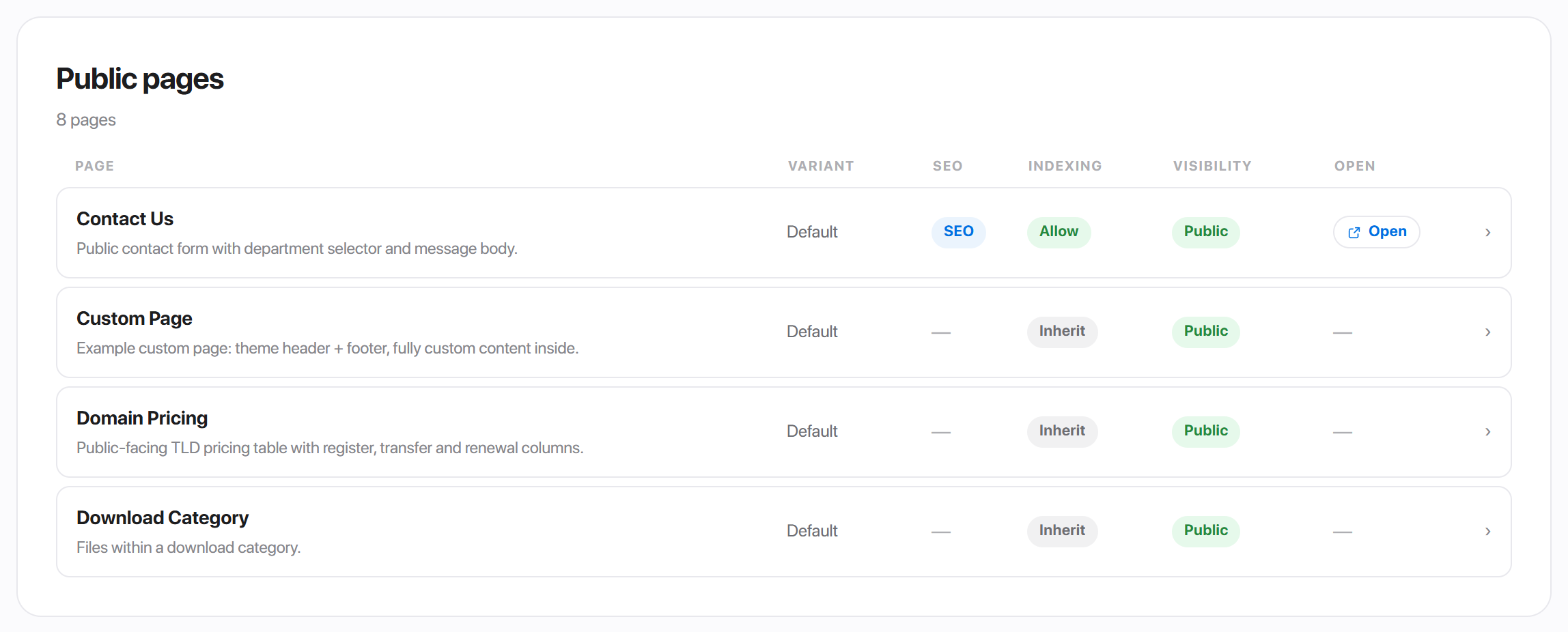
| Column | Shows |
|---|---|
| Page | The page's display name and one line describing it. |
| Variant | Which template is currently rendering it. |
| SEO | A blue SEO badge when that page has a title or description; a dash when it has neither. A few pages ship with theme-written defaults, so they carry the badge before you touch them. |
| Indexing | Allow (green), Disallow (amber) or Inherit (grey). |
| Visibility | Public (green), Auth only (blue) or Disabled (amber). |
| Open | Opens the live page in a new tab, when the page has a public URL set. |
Order Process pages - Products, Configure Product, View Cart, Checkout and the rest of the order form - get their own tab. They take SEO, visibility, sub-nav and layout overrides like any other page; they simply have no alternative templates to choose from, because the order form renders from its own template.
Clicking a row opens that page's editor. Everything from here down is one page's settings; Back to Pages returns to the list, View page opens the live page, and nothing is written until you press Save changes.

Page template
A page can ship more than one template. The Page template panel shows every one Hadrian found for that page, with the active one marked.
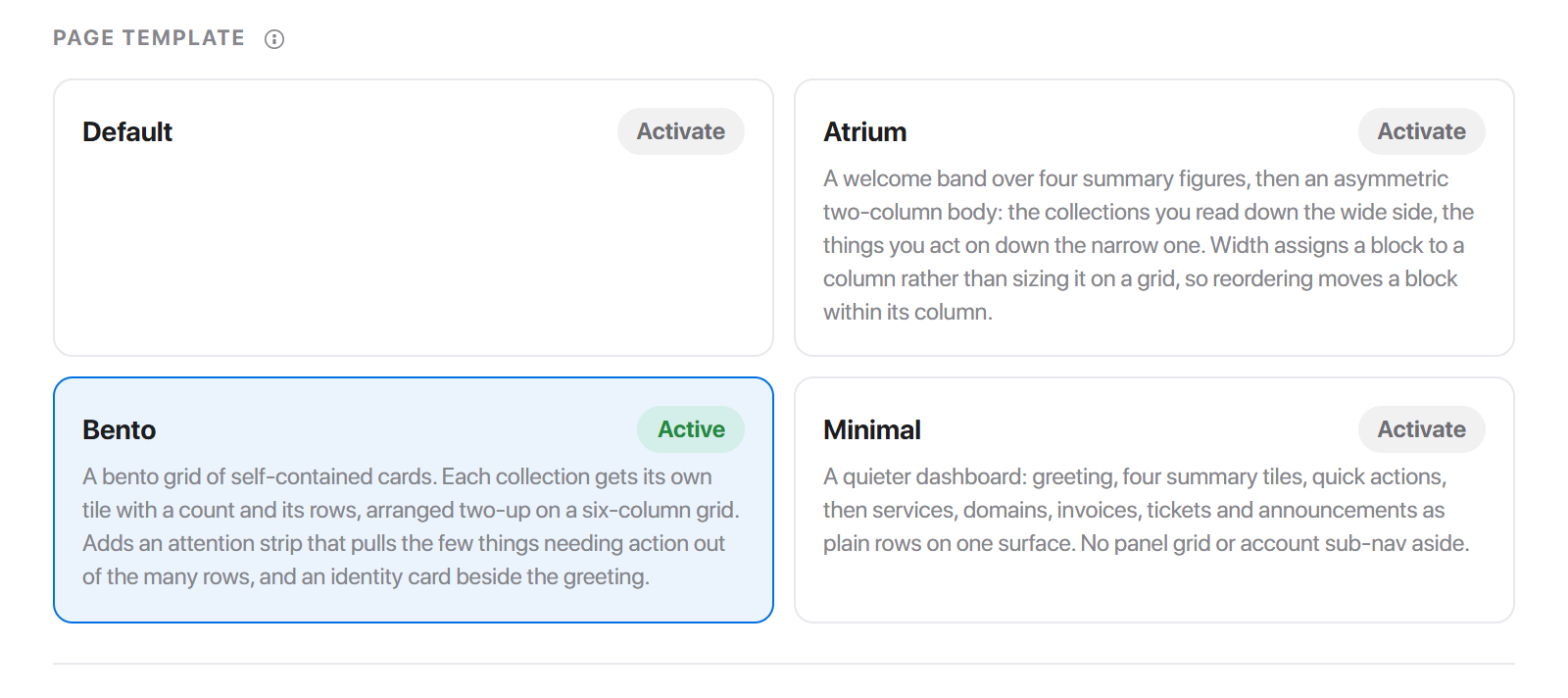
Click Activate on a card and save. Three pages ship alternatives today:
| Page | Templates it ships |
|---|---|
| Dashboard | Default, Atrium, Bento, Minimal |
| Sign in | Default, Beacon, Split + Announcements |
| Homepage | Modern, Classic |
What each of those renders, and every setting it offers, is catalogued in Page Templates.
Every other page has one template, and its panel simply shows that one card. Order Process pages have none at all and say so - the order form is rendered by its own template, not from core/pages. Neither is a fault; there is just nothing to choose.
Template settings
Underneath the template cards sits Template settings - the options belonging to the template you just picked. Pick a different template and the panel changes with it, because these options are declared by the template, not by the page.

Some templates declare a lot - the three alternative dashboards each carry a drag-to-reorder block builder here - and some declare none. When the selected template has no options of its own the panel says so.
Every setting, template by template, is documented in Page Templates.
A few options belong to the page rather than to one template, and stay put whichever card is active. Full Page on the Sign in page is the one worth knowing: it hides the navigation and footer so the page fills the window.
Page settings
These apply whichever template is selected.
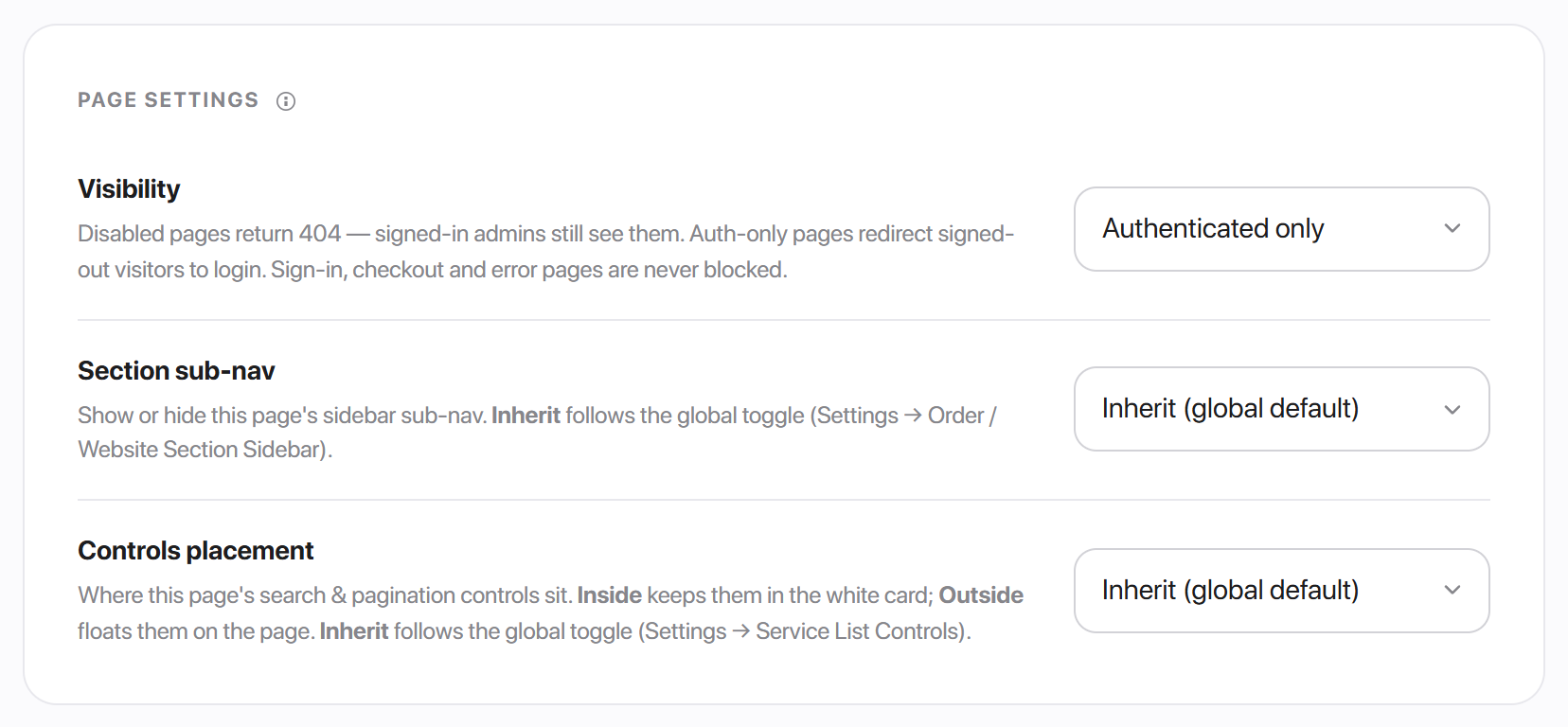
Visibility
Visibility marks how public a page is meant to be. It governs where the page is listed, not who may open it.
| Option | Stored as | Effect |
|---|---|---|
| Public | public | The page is eligible for sitemap.xml, and Page Manager offers an Open link for it. The default. |
| Authenticated only | auth | Kept out of the sitemap - the right marking for anything behind a login. |
| Disabled (404) | disabled | Kept out of the sitemap, and Page Manager stops offering an Open link for it. |
To take a page out of your navigation, edit the menu in Menu Manager - that is a separate control and the one that changes what visitors see.
Section sub-nav
Show or hide this page's sidebar sub-navigation. Inherit (global default) follows the site-wide toggle in Settings -> Order / Website Section Sidebar; On (always show) and Off (always hide) override it for this page.
Controls placement
Where a list page's search and pagination controls sit: Inside the card keeps them in the white panel with the table, Outside the card floats them on the page background, and Inherit (global default) follows the site-wide Card Titles Outside the Box setting.
This row only appears on the pages that have such controls - Services, Invoices, Quotes, View Invoice, View Quote, Add Funds, Support Tickets, Dashboard and Affiliates. On every other page it is absent rather than inert.
SEO
The SEO panel runs down the right of the editor and is always available - there is no switch to turn on first.
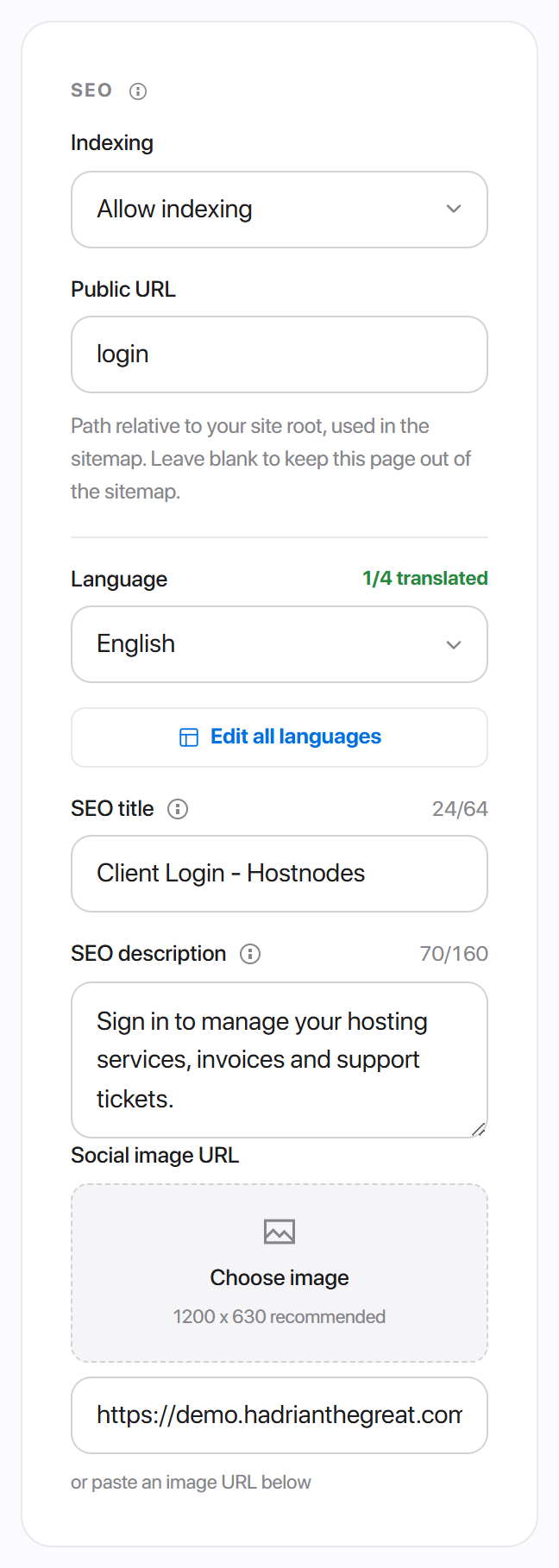
Indexing
| Option | Robots meta | What it does |
|---|---|---|
| Inherit from site default | none | WHMCS' own behaviour applies and the page can be indexed. The default. |
| Allow indexing | none | Same page head, but the page becomes eligible for the sitemap. |
| Disallow indexing | noindex, nofollow | Keeps the page out of search results and out of the sitemap. |
robots meta tag anywhere, which means search engines may index client-area pages. If there are pages you do not want in search results, set them to Disallow indexing deliberately - nothing does it for you.Public URL
The path to this page relative to your site root - contact.php, login, store/ssl-certificates. It does two things: it powers the Open link in the list, and it is the URL written into sitemap.xml.
Leave it blank to keep the page out of the sitemap entirely. A page needs a public URL, Public visibility and indexing other than Disallow before it is listed.
Title, description and social image
SEO title replaces the whole <title> tag. Leave it blank and Hadrian falls back to the WHMCS page title followed by your company name.
SEO description becomes the meta description. Blank falls back to your WHMCS tagline.
Social image is the picture used when the page's link is shared. Pick one from your media library with Choose image, or paste a URL underneath. 1200 x 630 is the size to aim for.
The counters beside the title and description fields - 0/64 and 0/160 - are the lengths search engines display before truncating. They are guidance, not a limit; longer text saves fine.
From those three fields Hadrian generates the whole social set, so there is nothing else to fill in:
| You set | Hadrian emits |
|---|---|
| SEO title | <title>, og:title, twitter:title |
| SEO description | <meta name="description">, og:description, twitter:description |
| Social image | og:image, twitter:image, and switches twitter:card to summary_large_image |
| nothing at all | canonical, og:url, og:type, og:site_name, and hreflang alternates when alternate links are on |
Writing SEO copy in every language
Title and description are stored per language, not as one string. The Language picker switches which language you are editing, and the counter beside it - 1/4 translated - tells you how far through you are.
Edit all languages opens every language at once:
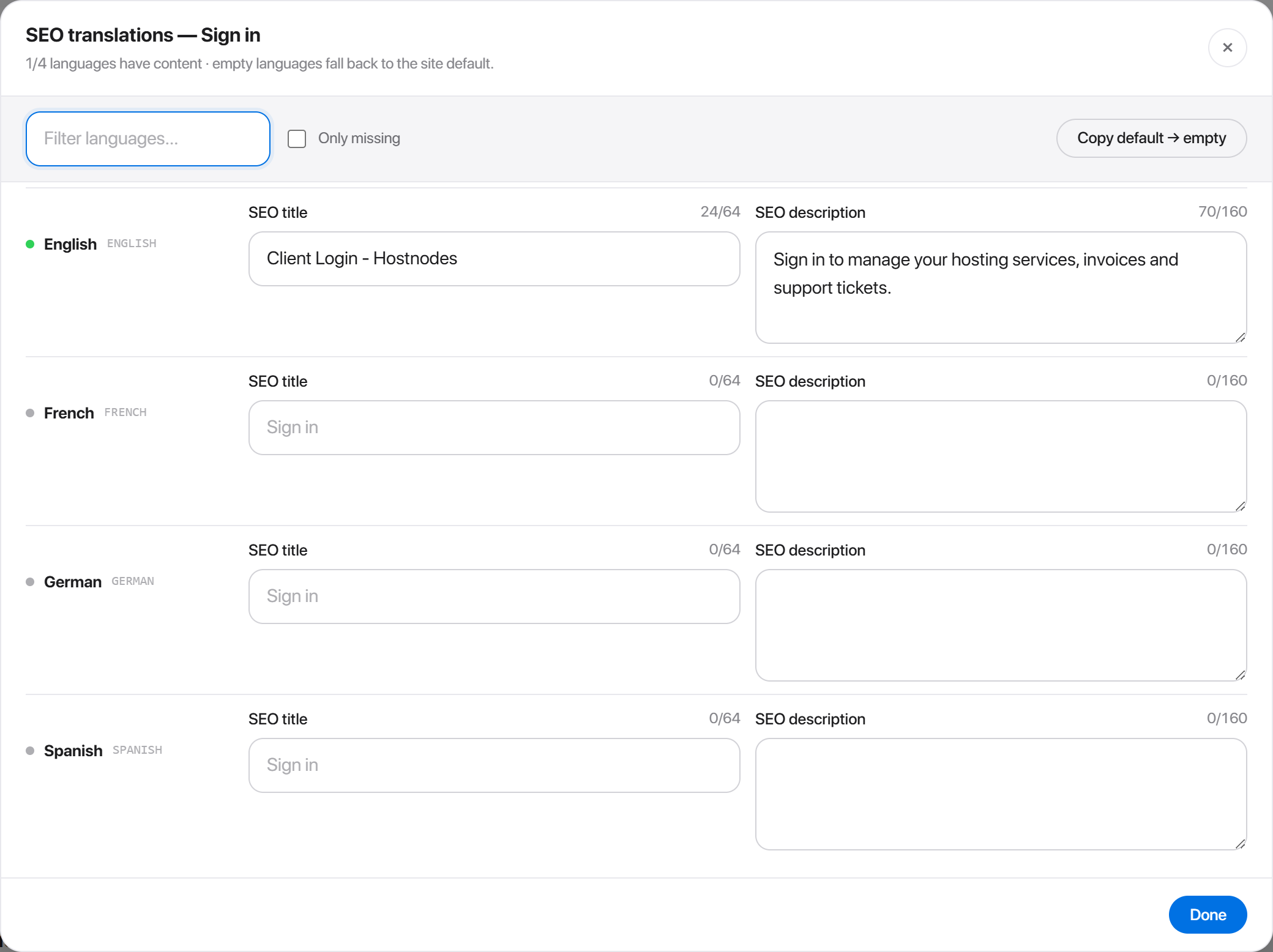
- 1Click Edit all languages.
- 2Type into the language you want, or narrow the list with Filter languages and Only missing.
- 3Copy default -> empty fills every untranslated language with your default-language text, as a starting point.
- 4Click Done, then Save changes.
A language you leave empty is not a gap - the page falls back to your default language for that visitor.
Custom layout
The two dropdowns at the bottom of the right rail override Layout Manager for this page and no other.
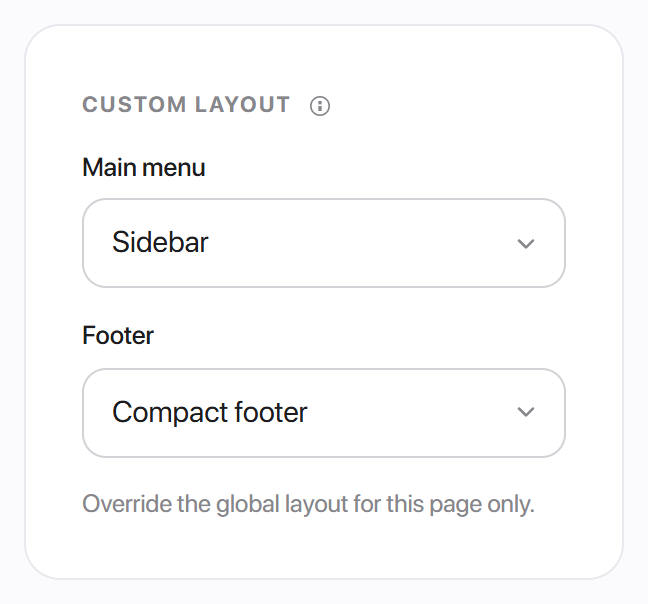
Both start on Use global layout. Choose a specific main-menu or footer layout and that page renders with it, whatever the site-wide setting is. The override is resolved on the server before the page is sent, so there is no flash of the wrong layout.
The usual reason to reach for it: a full-width marketing homepage on top navigation while the client area runs on the sidebar, or a checkout page with the footer stripped back.
Adding your own page
Pages the theme does not ship - a landing page, a policy page, anything you build yourself - can be registered so they appear in Page Manager with the same template, SEO and layout controls as everything else.
Hadrian ships a working example: custom-page.php in your WHMCS root, rendering core/pages/custom-page/default/default.tpl. Copy it.
- 1Copy
custom-page.phpin your WHMCS root to<name>.phpand change itssetTemplate('custom-page')call tosetTemplate('<name>'). - 2Copy
templates/hadrian/custom-page.tpltotemplates/hadrian/<name>.tpland replacecustom-pagewith<name>inside it. This file is only a two-line dispatcher - it hands the body off tocore/pages. - 3Create
templates/hadrian/core/pages/<name>/with apage.phpinside it. - 4Create
templates/hadrian/core/pages/<name>/default/default.tpland put your markup in it. - 5Open Hadrian -> Pages. Your page is in the list.
page.php is what puts it in the list and names it:
<?php
return [
    'display_name' => 'Access Denied',
    'group'        => 'Client Area',
    'description'  => 'Shown when a client opens something they cannot see.',
];| Key | Default | Purpose |
|---|---|---|
display_name | the folder name | The name shown in Page Manager and in the menu builder's page picker. |
group | Other | Which tab it files under: Public, Authentication, Client Area, Account, Billing, Shop or Support. |
description | empty | The line under the name in the list. |
defaultVariant | default | Which template renders it before anyone picks one. |
listDisplay | true | Set false to keep it out of the list. It still renders and is still reachable by URL. |
supportedOptions | [] | Options to show under Template settings for every template of this page. |
seoDefaults | none | Starting indexing, title and description, used until someone edits the page's SEO. |
core/pages directory, so a page you just added appears on your next visit to the Pages tab. There is no version to bump and no rebuild to run.To offer a second template for a page, add core/pages/<name>/<template>/ with a <template>.tpl inside it. The directory, the .tpl and the optional .php that names it must all share the same name - beacon/beacon.tpl and beacon/beacon.php. Hadrian finds it on the next page load and it appears as a card in Page template.
Replacing a page you did not write
If you want to rewrite a stock page's body outright, do not edit the theme's file - the next update will replace it. Drop your version at:
templates/hadrian/core/pages/<page>/overwrites/overwrites.tplWhen that file exists it renders instead of every template for that page, including whichever one is selected in the admin. Deleting it hands the page back to the theme.
overwrites.tpl is in place, the Page template panel still shows a card as Active, but the page renders your file. If a template change appears to do nothing, check that directory first.