
Settings
The theme-wide switches - colour mode, casing, prices, languages, consent, table loading - plus the order-process controls for the Configure Server step. One screen, two tabs, one save.
Introduction
Settings is where the options that apply to the whole client area live. Nothing here is per-page and nothing here is cosmetic in the Style Manager sense: these are behaviours. Whether visitors can switch to dark mode. Whether a 0.00 reads as "Free". Whether a customer configuring a server sees the hostname field at all.
Open Hadrian -> Settings. The screen has two tabs.

| Tab | What it covers |
|---|---|
| General | Every page of the client area - appearance, navigation, pricing display, languages, privacy |
| Order Process | The order form only - the cart sidebar and the Configure Server step |
Both tabs are one form. You can change something on General, switch to Order Process, change something there and save once - the tab you happen to be looking at when you press Save does not decide what gets written.
Searching

Typing filters the rows on both tabs at once, which is the point: when you are hunting for a setting, "which tab is it under" is usually the thing you do not know.
Search matches the label, the help text underneath it, and a list of synonyms - so gdpr finds Cookie Box, hreflang finds Enable Alternate Links, and uppercase finds Section Titles Capitalization.
Saving

There is no Save button at the top of the section and none at the foot. This page used to have both, and which one you reached depended on where you gave up scrolling. The bar floats instead, so it is always the same button.
Nothing applies until you press Save changes. A toggle you flipped and did not save is a toggle that is still off.
Appearance
Colour mode, label casing, and how a card is put together.
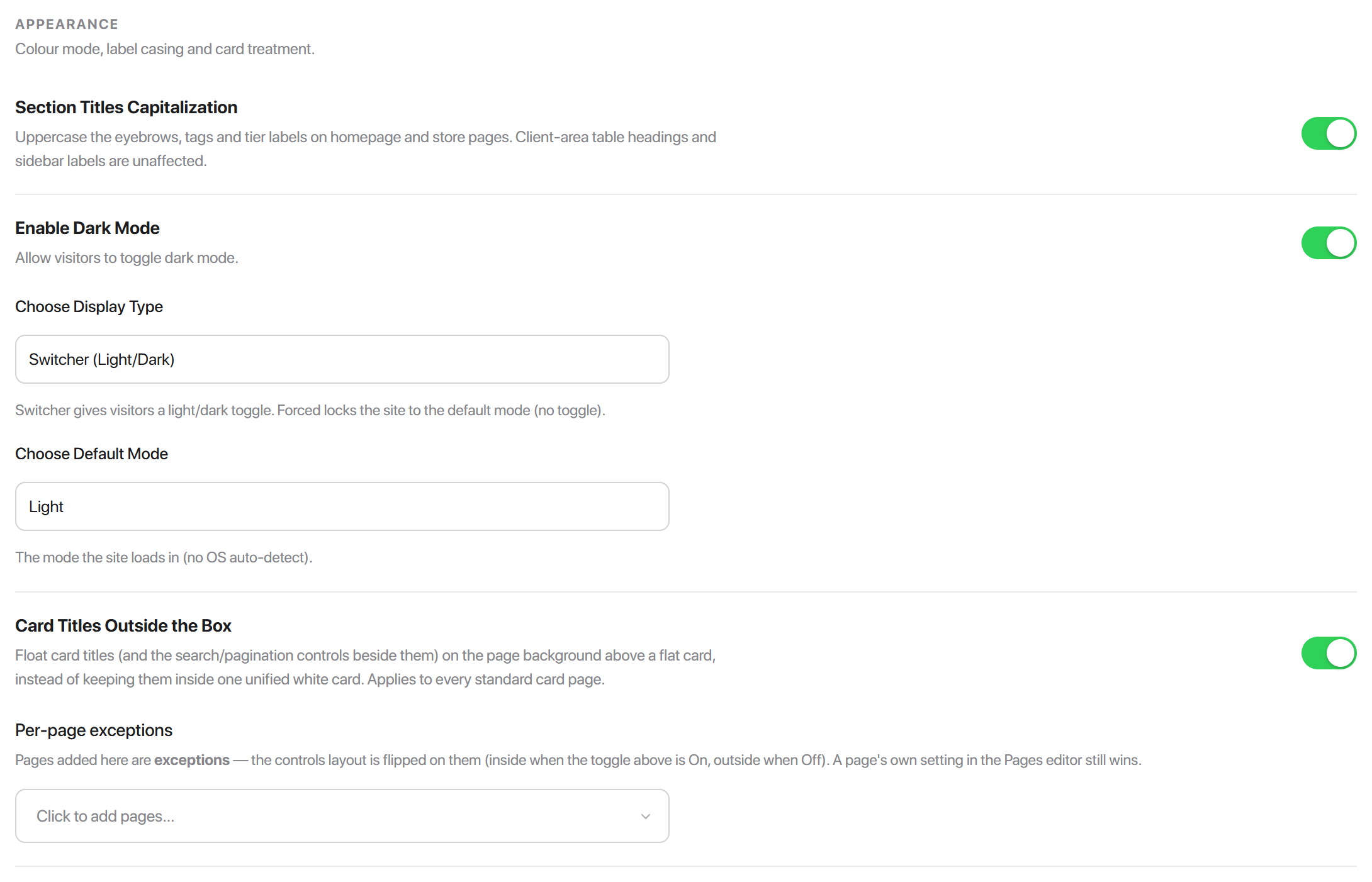
| Setting | What it does | Default |
|---|---|---|
| Section Titles Capitalization | Uppercases the eyebrows, tags and tier labels on the homepage and store pages | On |
| Enable Dark Mode | Makes dark mode available at all. Reveals the two options below | On |
| Card Titles Outside the Box | Floats card titles - and the search and pagination controls beside them - on the page background above a flat card | Off |
Section Titles Capitalization
This covers marketing copy only: the small eyebrow labels, category tags and plan-tier labels on the homepage and the store pages. Client-area table headings and sidebar labels are not touched by it, so turning it off will not change how "Recent Invoices" or "My Services" is written.
Enable Dark Mode
Two options appear underneath once it is on.
| Option | Choices | Default |
|---|---|---|
| Choose Display Type | Switcher (Light/Dark), Forced | Switcher |
| Choose Default Mode | Light, Dark | Light |
Switcher puts a light/dark control in front of the visitor and remembers their choice. Forced removes that control and locks the site to whatever Choose Default Mode says.
prefers-color-scheme. Default Mode is the mode the site loads in for everyone, whatever their laptop is set to. That is deliberate: the mode is server-rendered, so the page never flashes the wrong colour on load.The colours dark mode uses are yours to edit - see Style Manager, which keeps a separate value for every colour token in each mode.
Card Titles Outside the Box
Off, a standard page is one white card: the title, any search or pagination controls, and the content all sit inside it. On, the title and controls lift out onto the page background and the card below them goes flat.
It applies to every standard card page, not just lists.
Per-page exceptions
Underneath the toggle is a page picker. Anything you add there is an exception - the treatment is flipped on that page. If the toggle is On, a listed page renders titles inside; if it is Off, a listed page renders them outside.
Navigation
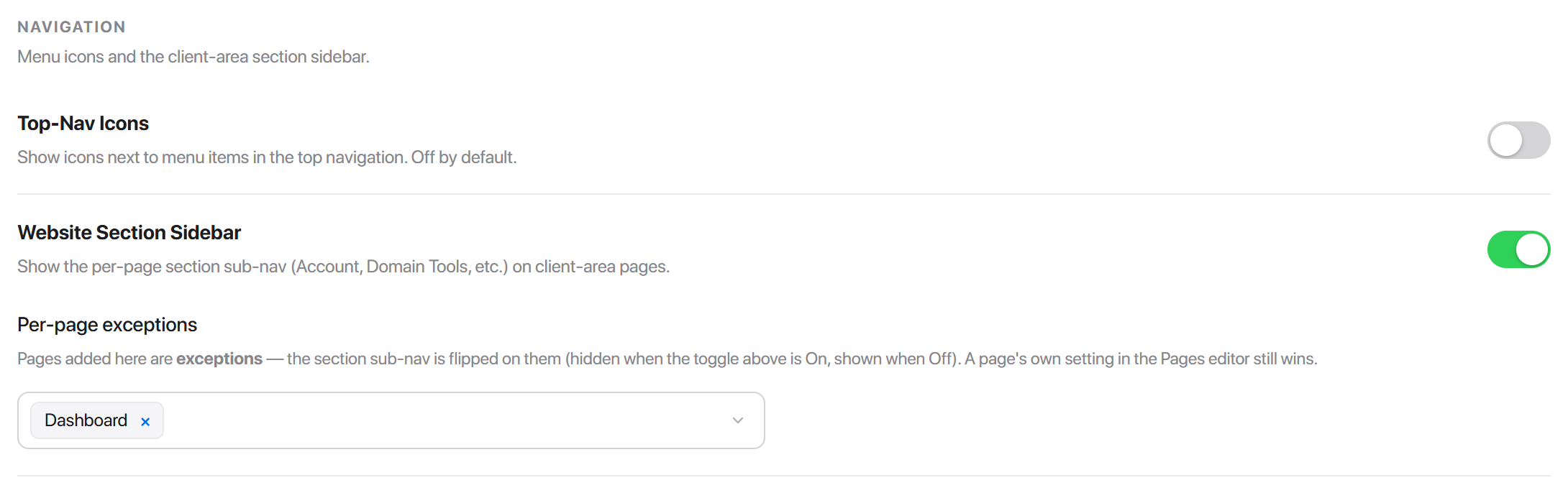
| Setting | What it does | Default |
|---|---|---|
| Top-Nav Icons | Shows an icon next to each item in the top navigation | Off |
| Website Section Sidebar | Shows the per-page section sub-nav - Account, Domain Tools and so on - on client-area pages | On |
The section sub-nav is the small card of links beside a page's content that keeps related pages together. Its own Per-page exceptions picker works exactly like the one above: listed pages get the opposite of the toggle, and a page's own setting in Page Manager beats both.
Pricing Display
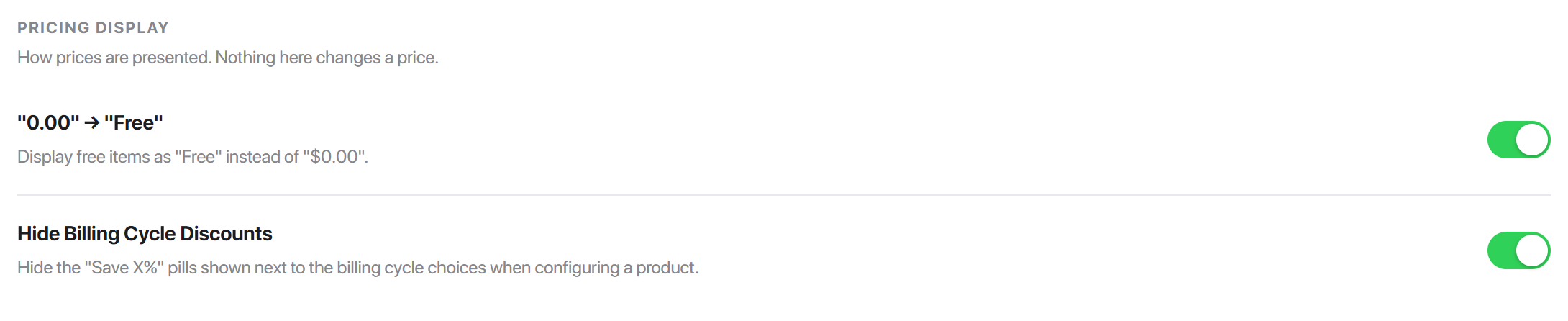
| Setting | What it does | Default |
|---|---|---|
| "0.00" -> "Free" | Renders a zero price as the word "Free" | Off |
| Hide Billing Cycle Discounts | Hides the "Save X%" pills beside the billing cycle choices when configuring a product | Off |
Hide Billing Cycle Discounts is the one to reach for if you would rather show flat rates than nudge customers towards longer commitments - the pills disappear and each cycle shows its own price.
Language and SEO
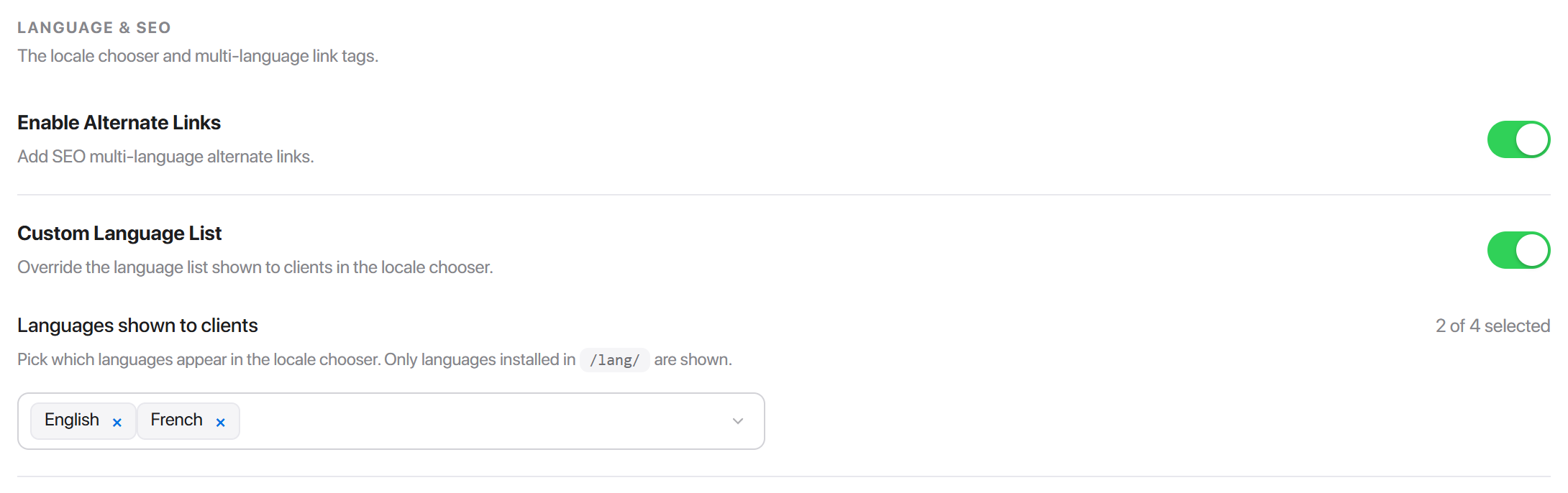
| Setting | What it does | Default |
|---|---|---|
| Enable Alternate Links | Adds hreflang alternate link tags to the page head, one per installed language | On |
| Custom Language List | Overrides the languages offered in the locale chooser | Off |
Enable Alternate Links
Leave it on if you run more than one language. It tells search engines that your English and German pages are translations of each other rather than duplicates, so the right one is indexed for the right audience. On a single-language install it emits nothing worth worrying about either way.
Custom Language List
By default the locale chooser offers every language WHMCS has installed. Turn this on and a picker appears - Languages shown to clients - listing what is installed and counting what you have chosen.
Only languages that actually exist under /lang/ can be picked, so a stale selection cannot leave a customer staring at a language you removed.
Privacy and Performance
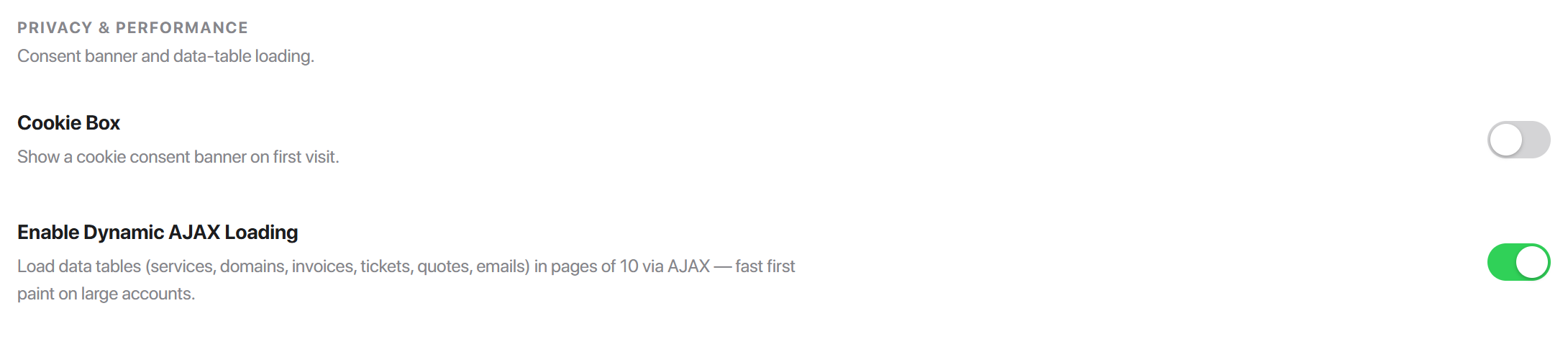
| Setting | What it does | Default |
|---|---|---|
| Cookie Box | Shows a consent banner on a visitor's first visit | Off |
| Enable Dynamic AJAX Loading | Loads the client-area data tables ten rows at a time over AJAX | Off |
Cookie Box
Switching it on reveals the banner's own three fields.
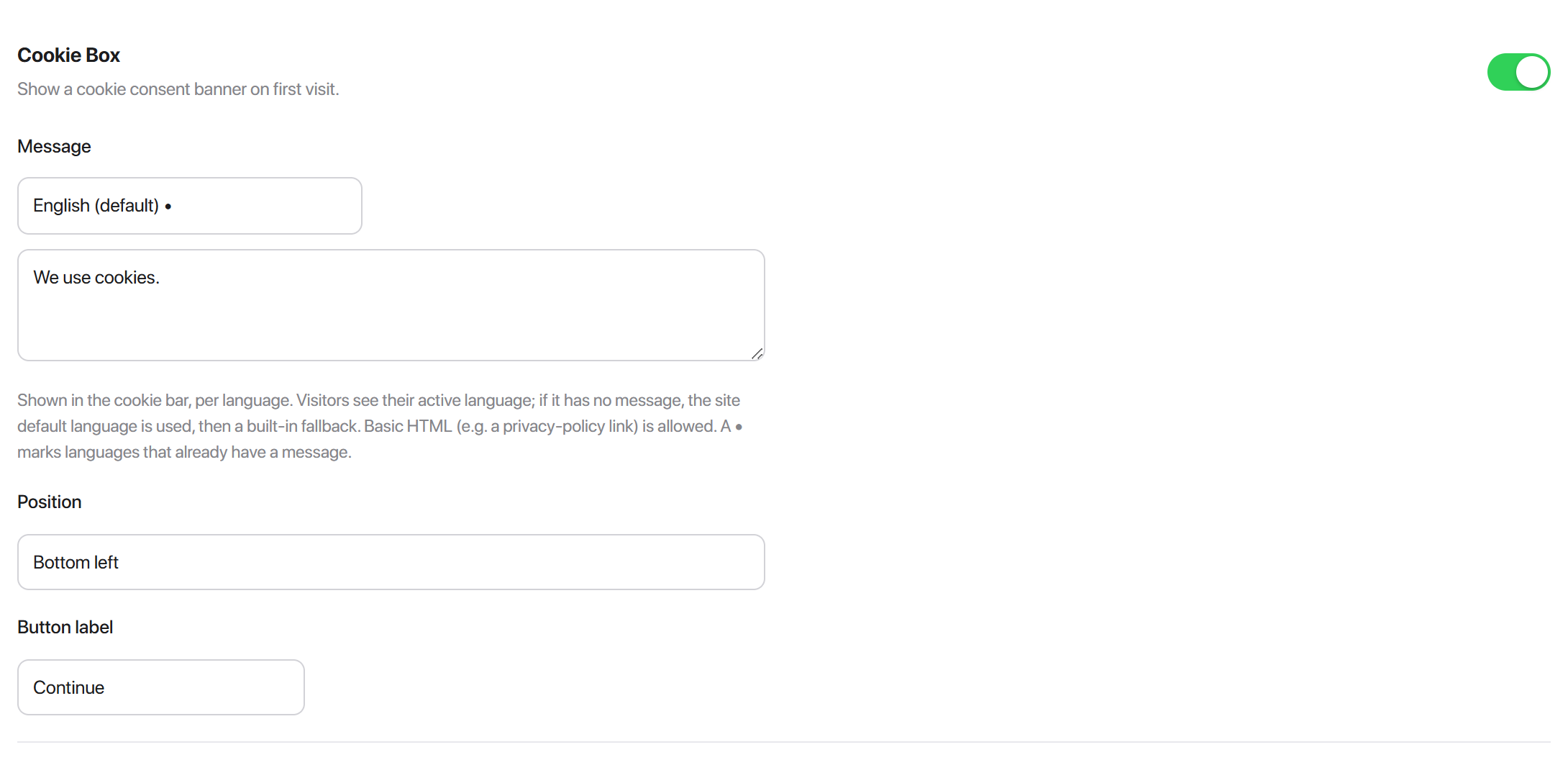
| Field | Notes | Default |
|---|---|---|
| Message | The banner copy. Basic HTML is allowed, so you can link a privacy policy | empty |
| Position | Bottom left, Bottom right, Bottom (full width) | Bottom left |
| Button label | The text on the dismiss button | Continue |
The message is stored per language. Pick a language from the selector above the box and write that language's copy; a dot beside a language in that list means copy already exists for it.
/lang/ are stored at all.Enable Dynamic AJAX Loading
Off, WHMCS builds the whole table before the page paints - on an account with two thousand domains, that is the whole two thousand. On, the first ten rows arrive and the rest are fetched as they are needed. Sorting, filtering and searching go back to the server instead of re-rendering everything in the browser.
It covers the client area's data tables: services, domains, invoices, tickets, quotes and emails.
Order Process
The second tab. Everything here affects the order form and nothing else.
Cart Layout
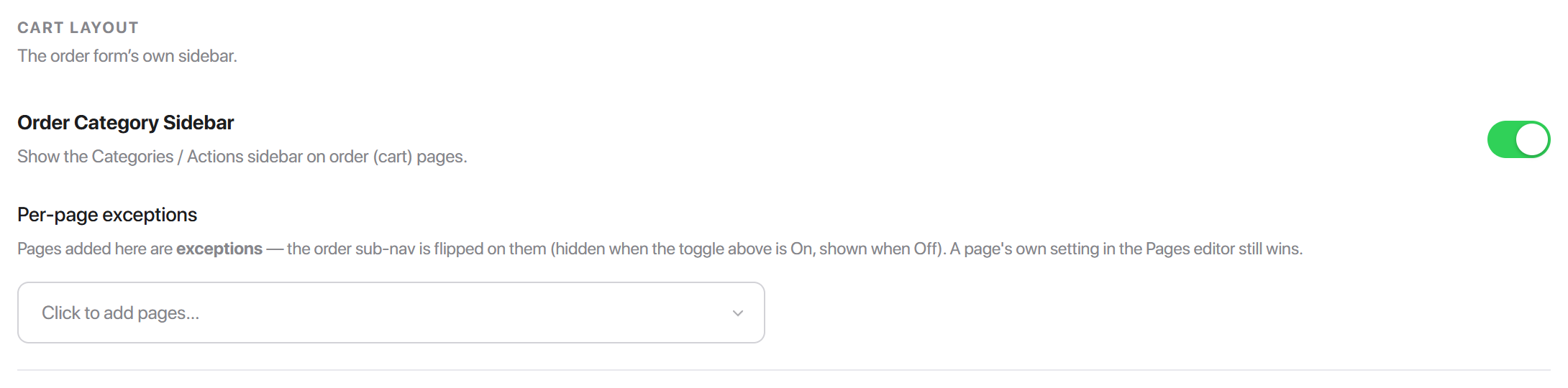
| Setting | What it does | Default |
|---|---|---|
| Order Category Sidebar | Shows the Categories / Actions sidebar on the cart pages | On |
Its Per-page exceptions picker behaves like the ones on the General tab: listed cart pages get the opposite of the toggle, and a page's own setting in Page Manager beats both.
Configure Server
The three settings below all target the Configure Server step of product configuration - the panel that asks for nameservers, a hostname and a root password.
Hide Product Nameservers
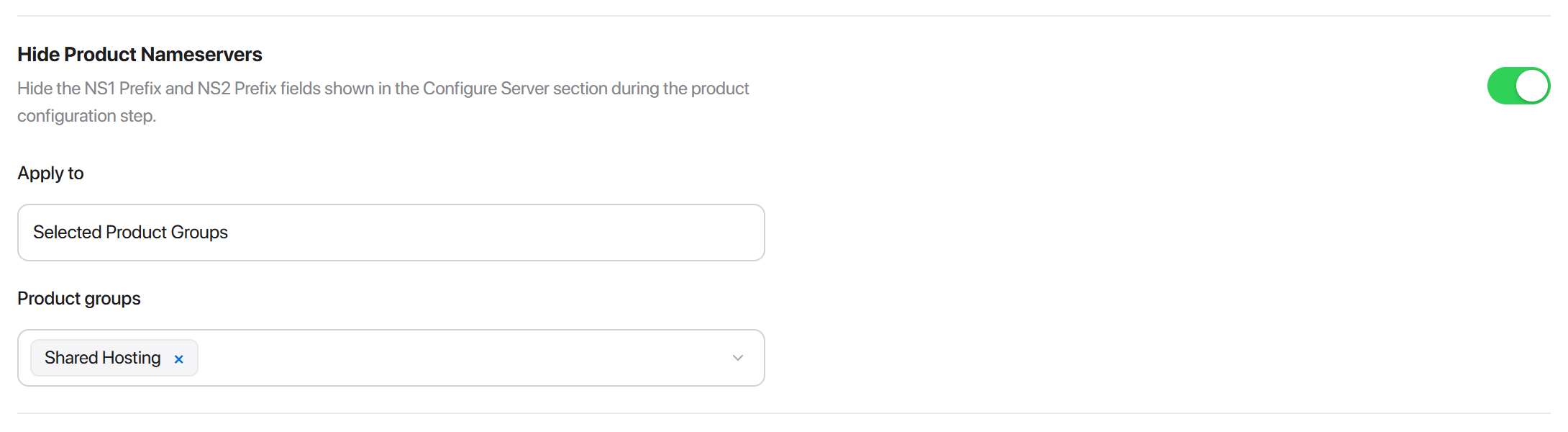
Hides the NS1 Prefix and NS2 Prefix fields. Turning the switch on reveals Apply to:
| Choice | Effect |
|---|---|
| All Products | Every server product, including groups you add later |
| Selected Product Groups | Only the groups you pick, in a searchable picker below |
"All Products" is stored as all, not as a frozen list of today's group IDs - a product group created next month is covered without coming back here.
Hide Product Hostname
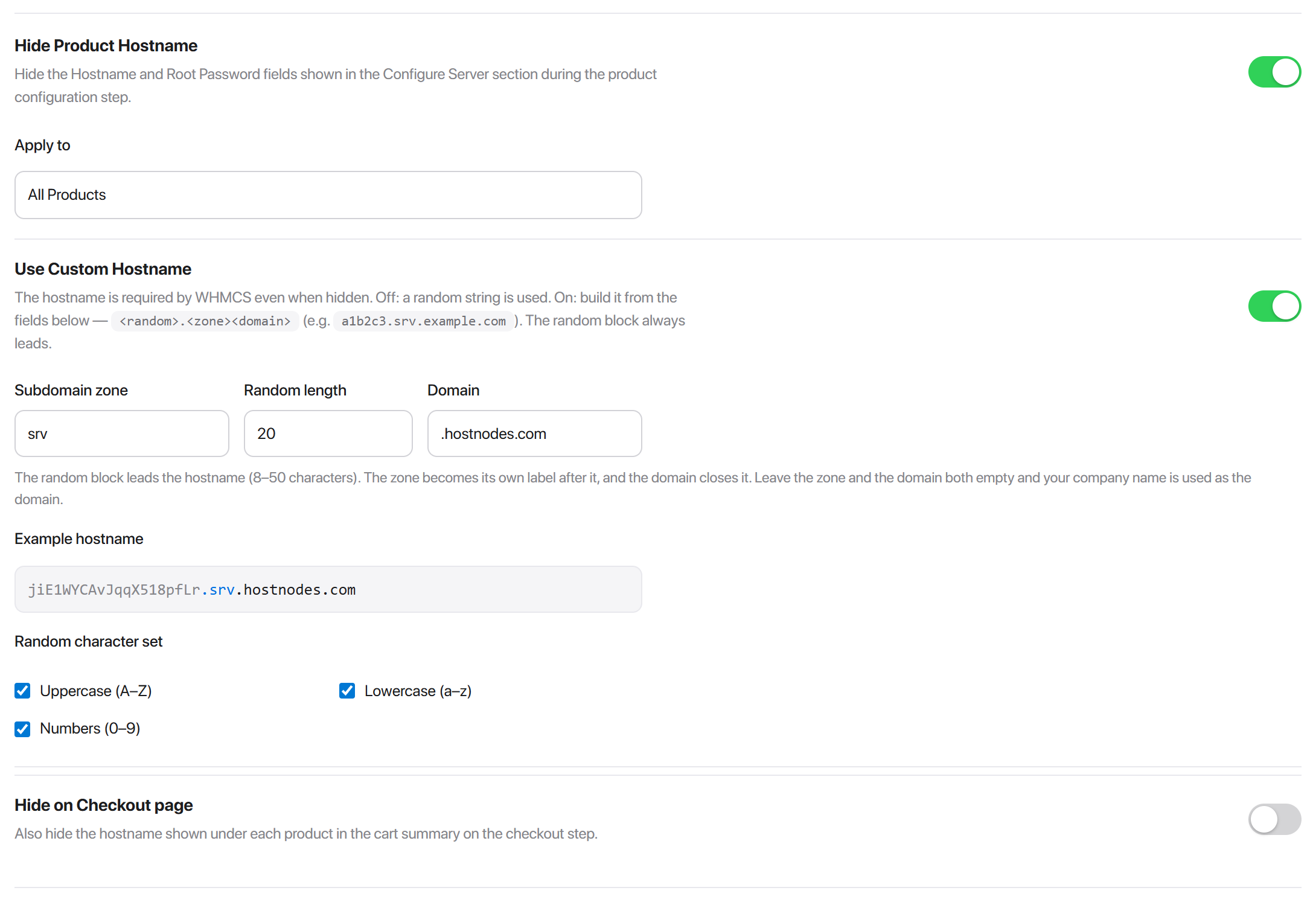
Hides the Hostname and Root Password fields, with the same Apply to choice as nameservers. WHMCS still requires both values, so Hadrian fills them in behind the scenes: the root password is generated, and the hostname comes from the builder below.
Use Custom Hostname
Off, the hidden hostname is a random string. On, you get four fields and a worked example of what they will produce.
| Field | Notes | Default |
|---|---|---|
| Subdomain zone | Its own label, between the random block and the domain. The dot in front of it is added for you | empty |
| Random length | How many random characters lead the hostname. 8 to 50 | 20 |
| Domain | Closes the hostname. A leading dot is added for you if you leave it off | empty |
| Random character set | Uppercase, Lowercase, Numbers - tick any combination | all three |
The hostname is assembled as <random>.<zone><domain>, so a zone of srv and a domain of .hostnodes.com with a random length of 20 produces something like k3n8x2vq7mtd94rblz06.srv.hostnodes.com.
Example hostname, under the three fields, re-rolls as you type. It uses the length you set and the character set you ticked, and it applies the same tidying-up the save does - so what it shows is what your orders will get, and you see it before saving rather than after the first order.
srv-k3n8... is not reachable. The zone is a middle label, which is what makes each generated name a per-order host sitting under one fixed zone.Leave the zone and the domain both empty and the hostname falls back to your company name as the domain - <random>.<yourcompany>.com. Tick none of the character types, or all three, and all three are used.
Hide on Checkout page
Off by default. On, the generated hostname is also kept out of the per-product summary on the checkout step, so the customer never sees the string at all.
Enable Password Strength For Root Password Field

Adds a strength meter to the Root Password field during product configuration, and rejects weak passwords server-side rather than only in the browser. It affects that field alone - registration and the client area's own password screens are untouched.
What is configured somewhere else
Several things that feel like settings are not on this screen, because they belong to the thing they change:
| You want to | Go to |
|---|---|
| Pin the navbar, unpin the sidebar, hide the breadcrumb | Layout Manager -> Main menu -> Header |
| Hide the language switcher or the currency selector | Layout Manager -> Main menu -> Header |
| Hide the footer social icons, or add a back-to-top button | Layout Manager -> Footer |
| Change the footer company description or the social URLs | Branding -> Brand Info |
| Show or hide the account block in the sidebar | Layout Manager, per layout |
| Change colours, fonts, radii, or add custom CSS | Style Manager |
| Hide one page, or give it its own layout and SEO copy | Page Manager |
| Change what appears in the navigation | Menu Manager |
Common problems
I flipped a switch and nothing changed
Press Save changes in the floating bar. Toggles do not apply on click.
The setting is on, but one page ignores it
Two things override a global toggle, in this order: the page's own setting in Page Manager wins over everything, and the Per-page exceptions picker under the toggle flips it for the pages listed there. Check the page in Page Manager first.
Visitors can still switch to light mode
Choose Display Type is still Switcher. Set it to Forced, which removes the control entirely.
I set Forced and the site is still light
Forced pins the site to Choose Default Mode, and that is Light until you set it to Dark. Both options have to be set.
The locale chooser still lists every language
Custom Language List has to be on for the picker to be read at all - with it off, the list you built is ignored and WHMCS's full set is offered. If the chooser is missing entirely instead, that is Hide Language Switcher on the Layouts page.
The cookie banner text is blank in one language
The message is stored per language and an empty box drops that translation. Select the language above the message field and write it there. Languages that are not installed under /lang/ cannot be saved at all.
The hostname settings do nothing
Either the product is not of type Server - WHMCS renders no Configure Server panel for anything else - or Apply to is set to Selected Product Groups and that product's group is not in the list.
My custom hostname pattern is ignored
The builder only fills a hostname the customer cannot see. If Hide Product Hostname is off, or does not apply to that product's group, the customer types the hostname themselves and the pattern is never used.