
Custom Layouts
Drop one folder into the theme and it becomes a main-menu or footer layout - an admin card, per-audience activation, live preview and all. No core file is edited and nothing needs registering.
Introduction
The Layout Manager ships three main-menu layouts and three footer layouts. When none of them is the shell you want, you do not edit the theme - you add a folder next to them.
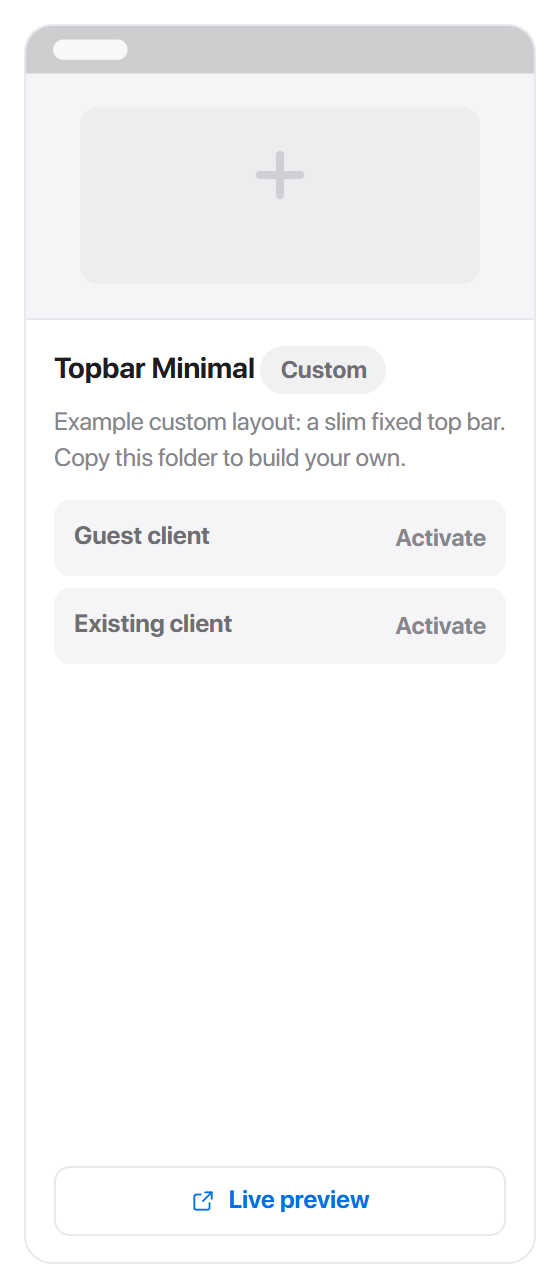
Hadrian scans core/layouts/main-menu/ and core/layouts/footer/ inside the theme. Any folder that contains a layout.php manifest and a default.tpl template becomes a card on the Layouts page, badged Custom, with the same Activate rows and Live preview link as a shipped layout. The theme's own files stay untouched - theme.json, header.tpl, the core CSS - which means your layout survives theme updates.
This page is written for whoever builds the folder - a developer comfortable with Smarty and CSS. If that is not you, the takeaway is simpler: custom layouts install by upload, activate from the same Layouts page as everything else, and can always be switched away from without leaving a trace.
The shipped example
The theme includes one custom layout out of the box: Topbar Minimal, a slim fixed bar with the brand on the left and the menu inline. It exists to be copied - every rule on this page is demonstrated inside its folder.

core/layouts/main-menu/topbar-minimal/
  layout.php      the manifest - name, description, token
  default.tpl     the markup
  layout.css      the layout's own styling (optional)
Copy the folder under a new name, change the token in layout.php, and the copy appears as its own card on the next visit to the Layouts page.
layout.php - the manifest
The manifest is a plain PHP file returning an array:
<?php
return [
    'displayName' => 'Topbar Minimal',
    'description' => 'A slim fixed top bar.',
    'variables'   => [
        'dataLayout' => 'topbar-minimal',
    ],
];| Key | What it does |
|---|---|
displayName | The card title on the Layouts page |
description | The card's one-line description |
variables.dataLayout | Required. The layout's token - lowercase letters, digits and hyphens, starting with a letter. It becomes body[data-layout] on every page and the only-<token> gate class |
css.contentOffset | Optional. A pixel margin reserved on the content column - declare it for a pinned side column, omit it for a top bar |
css.offsetSide | Optional. Which side the offset applies to: left or right |
css.mobileCollapse | Optional. Drops the offset to zero below 900px. Defaults to on |
The token matters more than it looks: the theme writes it into the page's data-layout attribute and generates CSS selectors from it. That is why it is validated - a token with spaces, capitals or symbols is rejected, as is one that collides with a shipped layout (top, side, rail).
default.tpl - the markup
default.tpl is a Smarty template the theme includes on every page, as a sibling before the main content wrapper. The contract:
- The root element carries the class
only-<token>- for Topbar Minimal,only-topbar-minimal. The theme generates a gate that hides it whenever a different layout is active, which is what keeps previews clean. - Close everything you open. The template renders between the theme's own wrappers; an unclosed tag damages the page around it.
- The menu the Menu Manager builds arrives as
$mtSidebarItems- the same list the shipped Sidebar renders. Loop it and your layout obeys the admin's menu edits automatically. - Branding arrives as
$hadrian.branding.logo.lightand.dark, with the company name as the text fallback - the same slots every shipped layout uses. - On mobile you do nothing: below 900px the theme renders its own top bar and drawer for every layout except Top Navigation. Hide your chrome under 900px and the drawer takes over.
layout.css - the styling
If the folder contains a layout.css, the theme links it automatically - version-stamped, and only while your layout is the active or previewed one.
Write it against the theme's tokens, never raw colours:
.tbm-bar {
    background: var(--color-surface);
    border-bottom: 1px solid var(--color-border);
}
A layout styled with var(--color-*) tokens follows the buyer's Style Manager palette and dark mode with no extra work. One styled with hex values breaks the moment either changes.
Activating and previewing
- 1Upload the folder into
core/layouts/main-menu/(orfooter/) inside the theme. - 2Open Hadrian -> Layouts. The card is there, badged Custom.
- 3Live preview opens the client area with the layout applied to your browser session only.
- 4Activate it for guests, existing clients, or both - exactly like a shipped layout.
Per-page overrides work too: the Page Manager lists custom layouts in its override dropdowns alongside the shipped ones.
When a folder is rejected
A folder that fails validation does not silently fail to appear - the Layouts page says so, and why:

The reasons you can see:
| Reason shown | What it means |
|---|---|
No layout.php manifest. | The folder has no manifest file |
No default.tpl - this is the file the theme includes. | The manifest is there but the template is not |
layout.php does not return an array (or has a syntax error). | A PHP error in a manifest is caught, never fatal |
layout.php must declare variables.dataLayout. | The token is missing |
variables.dataLayout must match ... | The token has capitals, spaces or symbols |
dataLayout '...' is reserved by the shipped '...' layout. | The token collides with top, side or rail |
Fix the folder, revisit the page, and the notice is replaced by the card.
If a custom layout is removed
Deleting the folder of an active layout does not strand the site: the theme notices the layout no longer exists and falls back to the default Sidebar on the next request. The stored choice is kept, so re-uploading the folder restores it without touching the admin again.