
Licensing
What your license covers, where the key goes, what every status on the License screen means, and what to do when a key stops verifying after a move.
Introduction
Hadrian is licensed per WHMCS installation. The license is a one-time purchase and it does not expire: the theme keeps rendering your client area for as long as you run it. What renews is access to updates and support, which is included for the first year and optional after that.
| Setting | Default | Description |
|---|---|---|
Single Site | 1 install | Covers one WHMCS installation, on one domain. |
Unlimited | all installs | Covers every WHMCS installation you run, and includes priority support. |
Updates | 12 months | Every release published while your update access is current is yours to keep. |
Three things have to be in place before a key can verify at all: WHMCS 9.0 or later, PHP 8.1 or later, and the ionCube loader - the license check itself ships encoded, so a server without ionCube cannot run it.
Where the key goes
Open Addons -> Hadrian -> Info, then Manage license key. Paste the key from your order into the field and press Save & check.
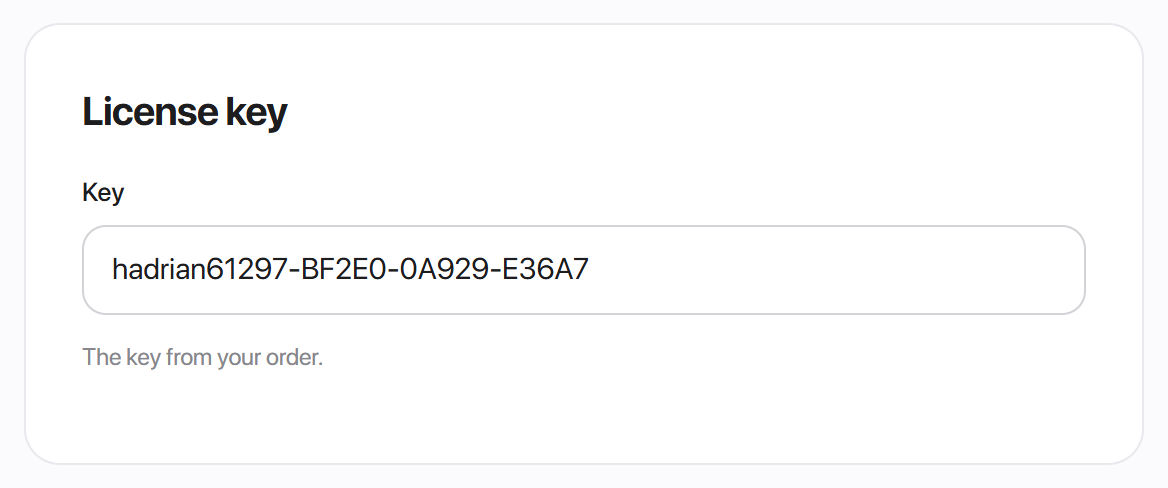

Saving does two things: it stores the key, and it discards the cached result of the previous check so the next page load asks the licensing server again rather than repeating a stale answer. If the key is good for this domain you get the green confirmation straight away.

If the addon is not active yet
The license check does not depend on the Hadrian admin addon - it is a small hook in includes/hooks/, so it runs even on a WHMCS where the addon has never been activated. On a fresh install you can put the key straight into the hook's config file instead:
// includes/hooks/hostnodes_license_config.php
define('HOSTNODES_LICENSE_KEY', 'hadrian-XXXXX-XXXXX-XXXXX');
The admin field wins if both are set, so once you have entered the key in Hadrian -> Info you can leave the file empty. It is a fallback, not a second place to keep in sync.
How the check works
The hook contacts our licensing server about twice a day and asks whether this key is good for this installation. The request carries the key, the domain, the server IP, the directory WHMCS is installed in, and the theme version, together with a one-time value that the reply has to echo back - which is what stops an old, captured reply being replayed at your server later. The reply is signed, and an unsigned or badly signed reply is treated as no reply at all.
The answer is cached locally, so the licensing server is contacted twice a day rather than on every page load, and a page never waits on the network to render.
What each status means
The Info tab shows everything the last check returned - status, key, whether updates are entitled, and the product and billing details that came back with it.
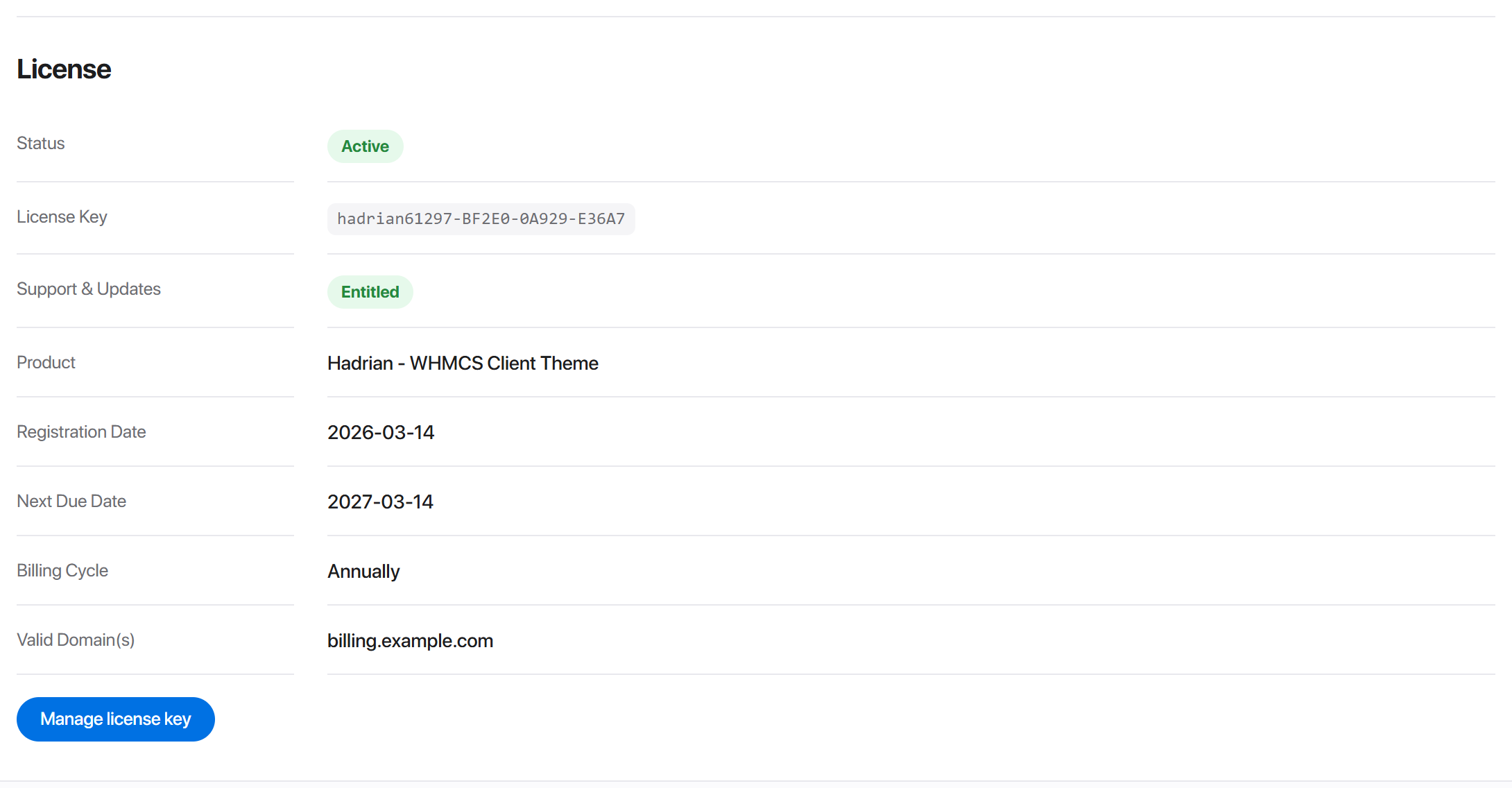
Every status resolves to one of four behaviours:
| Status | Client area | Updates | Admin sees |
|---|---|---|---|
| Active | Runs normally | Entitled | Nothing |
| Suspended / Expired | Runs normally | Paused | A reminder |
| Banned / Cancelled / Revoked | Reverts to the default theme | No | A red notice |
| Invalid | Grace window, then reverts | No | A warning from day 3 |
| Unverified (server unreachable) | Grace window, then reverts | - | A warning from day 3 |
Active
The key is valid for this domain. Nothing to do.
Expired or Suspended
A lapsed subscription does not take your client area away. The theme keeps running exactly as before; what stops is new releases and support until you renew.

Revoked
A revoked license is a deliberate action on our side, and it is the one status that takes effect immediately - there is no grace window. The client area reverts to the WHMCS default theme on the next page load.

Could not verify
If our licensing server is unreachable, or the reply does not verify, the theme does not punish you for it. An installation that was verifying normally rides the grace window described below, and nothing changes for the first three days.

No key
The state a fresh installation starts in. Enter the key and press Save & check.

The grace window
When a check stops succeeding - a mismatch after a move, or an outage on our side - a 30-day window opens before anything is taken away:
- 1Days 0-3. Nothing happens and nothing is shown. Most failures are a transient network problem and resolve on their own; warning you about them would be noise.
- 2Day 3 onward. A warning appears on the WHMCS admin dashboard, telling you roughly how long is left. Your clients still see nothing.
- 3Day 30. The client area reverts to the WHMCS default theme.
Reverting means WHMCS's own template settings are rewritten - the client area template goes back to six and the order form to standard_cart. It takes effect from the next page load, so a page that is already rendering is never disturbed and nothing is ever served half-styled. Your theme files, settings, styles, layouts and menus are all untouched: fixing the license and letting the next check succeed restores the theme, and it will only restore a revert it made itself - if you have deliberately switched to another template in the meantime, it leaves your choice alone.
Moving to another server or domain
The license is bound to the domain, IP address and installation directory that first checked in. Changing any of the three - a new host, a new domain, moving WHMCS from /whmcs to the web root - makes the next check fail even though your key is perfectly valid.
The fix is to reissue, which clears the stored server details so the next check records the new ones:
- 1Log in to your account in our billing area.
- 2Open Services, and pick your Hadrian license.
- 3Press Reissue License.
- 4Reload the WHMCS admin. If it still reads as unverified, open Hadrian -> Info -> Manage license key and press Save & check to force a fresh check rather than waiting for the next scheduled one.
The License Details panel on that same service page is worth reading before you press anything. It shows the exact Valid Domains, Valid IPs and Valid Directory the license is currently bound to, which is usually enough to tell you which of the three actually changed. It also shows Reissues Remaining - a reissue is not unlimited, so it is worth being sure the move is finished before spending one. A license has to be Active to be reissued; if it is suspended or expired, renew first.
After a reissue the status reads Reissued, which simply means the license has been unbound and is waiting: it locks to the domain, IP and directory of the next installation that checks in.
Changing the key
Upgrading from Single Site to Unlimited, or moving an installation onto a different license, is the same three steps as entering one for the first time: open Hadrian -> Info -> Manage license key, replace the value, and press Save & check. The old key is not retained anywhere and the cached result of its last check is discarded with it.
File integrity
Hadrian verifies its own files at runtime. Each protected file carries the SHA-256 hash it was published with, and a file whose contents no longer match stops the addon with a 503 rather than running modified code. The checks are spread across several files rather than concentrated in one, so patching a single file out trips the others.
In practice this fires for one of two reasons, and only one of them is a licensing matter:
- An incomplete upload. An FTP client that dropped a connection, or a partial extract, leaves a file that no longer matches its hash. This is by far the commoner cause.
- A modified file. The encoded licensing files may not be altered.
Either way the fix is the same: re-upload the files from the original release archive, complete, overwriting what is there. If it persists after a clean re-upload, send us the file the message names.
Updates and support
Your license includes a year of updates and support from the date of purchase. When that lapses:
- The theme keeps working, on the version you have, indefinitely.
- Every release published while your access was current stays yours.
- New releases and support tickets need the subscription renewed.
Renewing is done from the same service in our billing area that carries the reissue button. Nothing in your installation needs to change afterwards - the next check picks up the new expiry on its own, and the reminder on the admin dashboard clears.
Common problems
| What you see | What it usually is |
|---|---|
| "No license key" after entering one | The save did not go through; re-open the screen and confirm the field holds the key. |
| Went unverified right after a migration | Domain, IP or directory changed. Reissue. |
| Still unverified a day after reissuing | The result is cached; press Save & check to force a fresh check. |
| Unverified, and nothing changed here | Outbound HTTPS from your server is blocked, or cURL is missing. |
| A 503 naming a specific file | File integrity - re-upload that file from the release archive. |
| Client area went back to the stock theme | The license reverted it. Fix the status, then re-check; the theme is restored automatically. |